Tutorials

11 0 Intermediate
Drone design

5 1 Intermediate
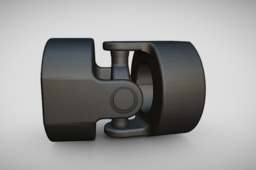
Welcome to this comprehensive tutorial on 3D modeling a Universal Joint using Siemens NX software. Whether you're a mechanical engineering student, CAD designer, or enthusiast, this video walks you through every step of designing a realistic Universal Joint—a key component in mechanical power transmission systems. 🔧 What You’ll Learn in This Video: - Basics of part modeling in NX Siemens - Creating sketches and applying constraints - Extruding and revolving features for mechanical components - Assembling parts of the universal joint - Real-time modeling tips and best practices 🛠️ About the Universal Joint: A universal joint, also known as a U-joint, is a joint or coupling that allows shafts to rotate freely when they are not in a straight line. Commonly used in vehicle drive shafts and industrial machinery, it enables torque transmission at varying angles. ⚙️ Software Used: Siemens NX - A powerful and versatile CAD/CAM/CAE software for 3D modeling and engineering design

2 0 Intermediate
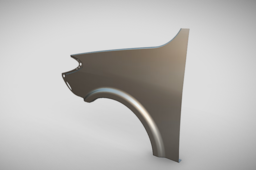
Welcome to our step-by-step tutorial on 3D modeling a car fender using Siemens NX! In this video, you'll learn how to create a precise and professional automotive fender model from scratch using advanced surfacing tools and parametric design techniques in NX CAD software. Whether you're a mechanical design student, an automotive engineer, or just passionate about CAD, this tutorial will help you understand real-world design practices used in the automotive industry. 🔧 What you'll learn in this video: - Setting up your design environment in Siemens NX - Sketching the base profile of the fender - Using extrude, revolve, and sweep commands - Surface modeling techniques for complex curves - Adding design details like mounting points and edge flanges - Finalizing the model with proper constraints and dimensions - Tips for preparing the part for simulation or manufacturing ⚙️ Software Used: Siemens NX - A powerful and versatile CAD/CAM/CAE software for 3D modeling and engineering design.

2 1 Intermediate
In this detailed SolidWorks tutorial, you'll learn how to design, assemble, and animate a classic radial engine step by step. Perfect for beginners and mechanical design enthusiasts alike, this guide will walk you through the entire process using SolidWorks' powerful features. We’ll begin by creating every individual part of the radial engine — from the complex crankcase to the pistons, connecting rods, and other essential components. As you model these parts, you'll become familiar with key SolidWorks tools and best practices for precision mechanical design. Once all components are ready, we'll move into the assembly stage. You'll discover how to use mates to position each part accurately and simulate realistic movement within the engine. This phase will show you how to bring multiple parts together into a fully functioning mechanical assembly. Finally, we’ll explore SolidWorks’ animation capabilities. You’ll learn how to create a motion study to simulate the engine’s operation and visualize the synchronized movement of the pistons and crankshaft — a great way to understand the internal mechanics of a radial engine. By the end of this tutorial, you’ll have a fully modeled, properly assembled, and smoothly animated radial engine. More importantly, you’ll gain solid experience with SolidWorks tools and a deeper appreciation for mechanical design principles.

2 0 Intermediate
I have prepared a training session on nonlinear bending analysis of sheet metal parts in SolidWorks. In this training, you will be able to easily examine the stress concentration areas of the parts. Based on the analysis results, you will be able to evaluate material piling and tearing. You will also be able to obtain deformation data and prepare detailed reports.

2 0 Intermediate
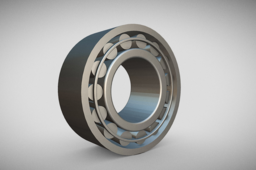
In this video, we demonstrate the complete 3D modeling process of a Tripodial Ball Bearing, a crucial component used in automotive drive shafts and CV joints. Using Siemens NX (Unigraphics) CAD software, we take you step-by-step through the precision modeling of this complex part, focusing on design accuracy, realistic geometry, and CAD best practices. What You’ll Learn in This Video: Introduction to Tripodial Ball Bearing and its automotive application Sketching and parametric design techniques in Siemens NX 3D feature creation including extrude, revolve, and boolean operations Assembly design considerations for bearing movement and fit Visualization and rendering tips for presenting your final model Whether you’re a mechanical design engineer, automotive enthusiast, or CAD student, this tutorial will help you understand not just how to model, but also why certain design decisions matter in real-world engineering. ⚙️ Software Used: Siemens NX - A powerful and versatile CAD/CAM/CAE software for 3D modeling and engineering design.

1 0 Intermediate
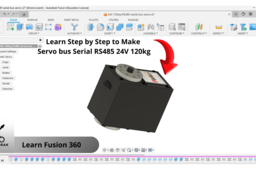
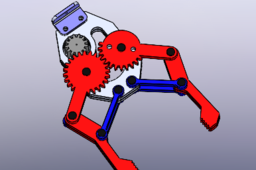
saya telah mendesain Learn Step by Step to Make Servo bus Serial RS485 24V 120kg dengan menggunakan softwar fusion 360, kegunaan nya untuk berbagai macam kebutuhan seperti contohnya teknologi robotic yang dapat digunakan untuk penggerak lengan robotic.

1 1 Intermediate
Welcome to FarmMach Pro! 🏎️🌾 Welcome to FarmMach Pro! 🚜 👉 Subscribe Here: https://www.youtube.com/@farmmachpro 👉 Rube Goldberg Machine : https://www.youtube.com/shorts/tJf9RNZf5pQ

1 1 Intermediate
Vase Design Tutorial 🌾 Welcome to FarmMach Pro! 🚜 👉 Subscribe Here: https://www.youtube.com/@farmmachpro

1 0 Intermediate
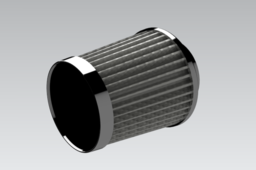
Welcome to our tutorials! In this video, we demonstrate the complete 3D modeling process of a car air filter using Siemens NX (Unigraphics NX) software. Whether you're a student, design engineer, or CAD enthusiast, this tutorial will guide you through step-by-step techniques for designing a realistic and functional automotive air filter in a professional CAD environment. 🔍 What you’ll learn: Basic sketching and extrusions Use of Boolean operations and pattern features Parametric modeling for part design Surface modeling essentials (if used) Assembly design tips (if applicable) Industry-level design techniques used in automotive part modeling 📌 Software Used: Siemens NX / NX Unigraphics 📌 Difficulty Level: Beginner to Intermediate 📌 Suitable for: Mechanical Engineers, CAD Designers, Automotive Design Students

1 0 Intermediate
Using SolidWorks Flow Simulation as we will perform a detailed CFD (Computational Fluid Dynamics) analysis of a Shell and Tube Heat Exchanger. This step-by-step tutorial covers geometry setup, meshing, boundary conditions, and interpreting flow and temperature results. 🔧 Topics Covered: Shell and tube heat exchanger modeling SolidWorks Flow Simulation setup Fluid flow analysis Result visualization and interpretation

1 0 Intermediate
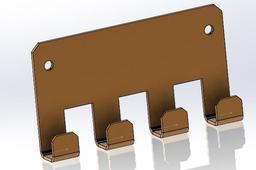
Sheet Metal Design and Press Brake Application in SolidWorks — Training Content Module 1: Introduction to Sheet Metal Design Objectives: Understand the fundamentals of sheet metal parts. Learn about bend allowances, K-factor, and design constraints. Familiarize with sheet metal design standards for manufacturing. Topics Covered: What is Sheet Metal Design? Common Manufacturing Methods (Laser Cutting, Press Brake Bending) Overview of Material Properties Design Guidelines for Sheet Metal Module 2: SolidWorks Sheet Metal Tools Overview Objectives: Explore SolidWorks sheet metal feature set. Understand the difference between solid and sheet metal modeling. Topics Covered: Sheet Metal Toolbar Sheet Metal Parameters: Thickness, Bend Radius, K-Factor Base Flange/Tab, Edge Flange, Hem, Jog, Sketched Bend Flatten and Unflatten Features Exercise: Open a new part. Enable the Sheet Metal tab. Use the Base Flange/Tab feature to create a 2mm thick sheet base. Add Edge Flange to create a simple box shape. Module 3: Creating a Sheet Metal Part Objectives: Create a real-world sheet metal component from scratch. Understand best practices for designing for bending. Step-by-Step: Start with Base Flange/Tab to define the main shape (e.g., rectangular plate). Add Edge Flanges to form sides (adjust angle and length). Add Reliefs for bends (Tear, Obround, or Rectangular). Use Sketched Bend to simulate press brake bends manually. Apply Corner Treatments (Corner Relief, Corner Trim). Check Flat Pattern for laser cutting and press brake compatibility. Module 4: Understanding Bend Calculations Objectives: Learn how SolidWorks calculates bend allowances. Apply correct K-Factor for accurate flat pattern dimensions. Topics Covered: Bend Allowance vs. Bend Deduction K-Factor Explanation (Typical values: 0.3 to 0.5) How to set custom bend tables in SolidWorks Controlling bend direction and bend radius Exercise: Create a U-shaped bracket. Calculate the flat length manually and compare with SolidWorks flat pattern. Modify the K-factor and observe changes. Module 5: Exporting for Manufacturing Objectives: Prepare a design for laser cutting and bending. Generate flat patterns and technical drawings. Topics Covered: Creating 2D Flat Pattern View in Drawings Adding Bend Notes and Bend Lines DXF/DWG Export for Laser Cutting Assigning Bend Directions (Up/Down) Exercise: Generate a drawing of your sheet metal part. Add a Flat Pattern view. Ann

1 0 Intermediate
📦 **SolidWorks – Bounding Box Command Tutorial 🎯 **Purpose of the Bounding Box The **Bounding Box** is used to automatically generate a **virtual box** that represents the smallest rectangular box that can fully enclose a part or body. It's useful for: * 📐 Estimating raw material size * 📦 Packaging design * 📊 BOM automation (length, width, height) * 🧾 CNC programming / nesting 🔧 Where to Find the Bounding Box Command 🔹 **SolidWorks Version**: Available in SolidWorks 2018 and later 🔹 **Applicable To**: * Weldment parts (structural members) * Sheet metal parts * Bodies (in multibody parts) 📍 **Location:** * **Insert ➜ Reference Geometry ➜ Bounding Box** * Or, Right-click the **Cut List Item** or **Solid Body Folder** in FeatureManager Tree ➜ *Create Bounding Box* 🧰 **How to Use the Bounding Box Command ✅ Steps: 1. 🖱️ Right-click the **Cut List Item** or the **Solid Body Folder** (e.g., under a weldment or sheet metal part). 2. ➕ Click **Create Bounding Box**. 3. 📏 SolidWorks calculates and displays the smallest 3D box around the selected body. 4. 🧾 The box dimensions appear in the **Cut List Properties** automatically as: * `Bounding Box Length` * `Bounding Box Width` * `Bounding Box Thickness` (or Height) 📝 *Tip:* You can show these values in a drawing BOM using cut list properties. 📌 **Bounding Box Options | Option | Description | | ------------------------ | ------------------------------------------------------------------- | | 🔲 **Best Fit** | Default. Creates the smallest possible box, optimized to the shape. | | ↕️ **Custom Plane** | You can define a specific orientation or plane for the box. | | ✏️ **Manual Adjustment** | Not possible – the box is always auto-calculated by geometry. | 📐 **Using Bounding Box in Drawings 1. Create a **drawing** from the part. 2. Insert a **Cut List Table** (for weldments or sheet metal). 3. Add columns for: * `Bounding Box Length` * `Bounding Box Width` * `Bounding Box Thickness` 4. 🧾 These will auto-populate from the bounding box data. 🧪 **Example

1 0 Intermediate
ABO EISHA

0 0 Intermediate
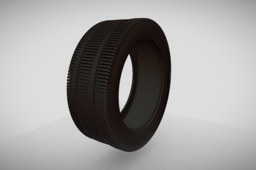
Welcome to our in-depth tutorial on Tyre 3D Modeling in Siemens NX! 🚗💨 Whether you're an engineering student, a CAD professional, or a designer looking to enhance your skills, this video will walk you through the entire process of designing a 3D tyre using Siemens NX software. 🔹 What You’ll Learn: ✅ Step-by-step guide to creating a realistic tyre model ✅ How to use sketching, revolve, and extrude tools effectively ✅ Adding intricate tread patterns for a professional finish ✅ Applying material properties and realistic rendering ✅ Useful tips & tricks to improve your 3D modeling workflow